


Anleitung zur Aktualisierung des drahtlosen Cluster-Displays
Wireless-Cluster-Display-Anleitung für Android & iOS | Ikagoo
Android: Wi-Fi-Casting + Bluetooth-Audio (getrennte Weiterleitung unterstützt). iOS: AirPlay-Screen-Mirroring (kein getrenntes AV). Querformat für Navigation empfohlen.
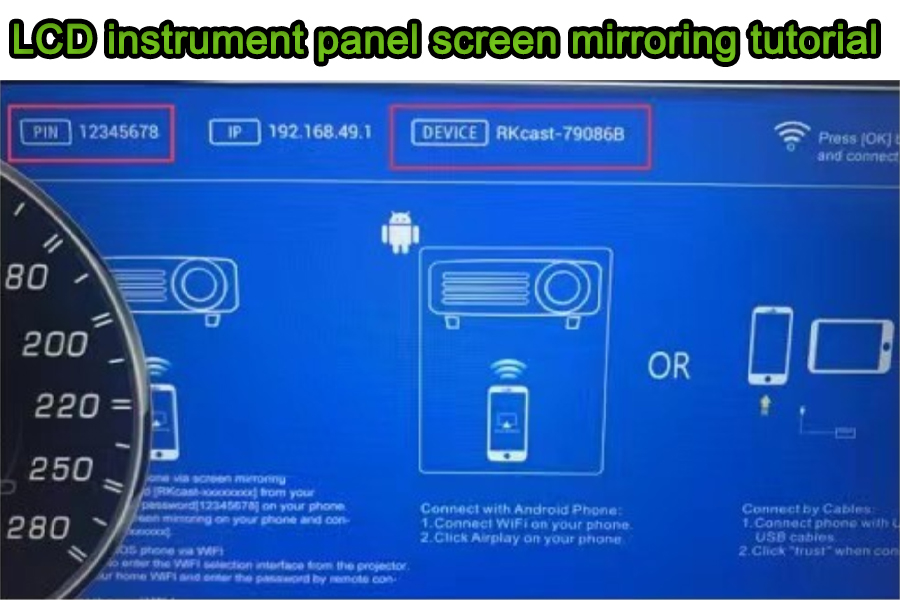
Übersicht
Was dieser Leitfaden behandelt
Praktische, praxiserprobte Schritte, um den Bildschirm Ihres Telefons auf ein Ikagoo-unterstütztes digitales Kombiinstrument zu spiegeln. Schwerpunkt: Video-Casting über WLAN, mit Android-Bluetooth-Audio Kopplung. iOS AirPlay spiegelt Video, aber trennt nicht Audio- und Videopfade.
Kurzer Sicherheitshinweis
Verwenden Sie Navigations-First-Layouts im Querformat. Vermeiden Sie das Ansehen von bewegten Videos während der Fahrt. Beachten Sie stets die örtlichen Vorschriften zur Nutzung von Bildschirmen im Fahrzeug.
Finden Sie Ikagoo digitale Instrumentencluster für Audi & Volkswagen.
Gerätekompatibilität
| Telefonanbieter / Funktion | Video zum Cluster | Audio zur Headunit | Anmerkungen |
|---|---|---|---|
| Android (Huawei-Projektion / Cast) | WLAN-Cast | Bluetooth A2DP (Telefon → Headunit) | Unterstützt Split-Routing (Video über WLAN, Audio über Bluetooth). |
| Android (Samsung Smart View / Cast) | WLAN-Cast | Bluetooth A2DP | Die Benennung unterscheidet sich je nach Modell/Betriebssystemversion; die Schritte ähneln denen von Huawei. |
| iOS (Apple AirPlay) | AirPlay | Keine AV-Trennung | iOS trennt Audio/Video beim Spiegeln nicht. |
Android — Schritte für drahtloses Casting (Beispiel Huawei)
- Öffnen Sie das Kontrollzentrum → Drahtlose Projektion/Cast auf dem Telefon.
- Warten Sie auf den Gerätescan; das Cluster-Gerät erscheint in der Liste.
- Wählen Sie das Kombiinstrument (derselbe Name wird auf dem Kombiinstrument angezeigt). Für die Vollbild-Navigation, schalten Sie die Hochformat-Sperre aus und drehen Sie das Telefon ins Querformat.
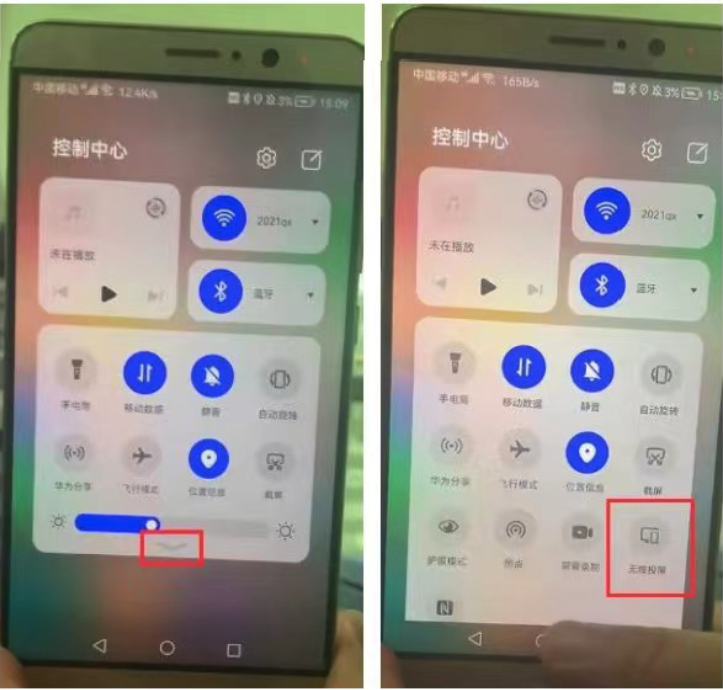
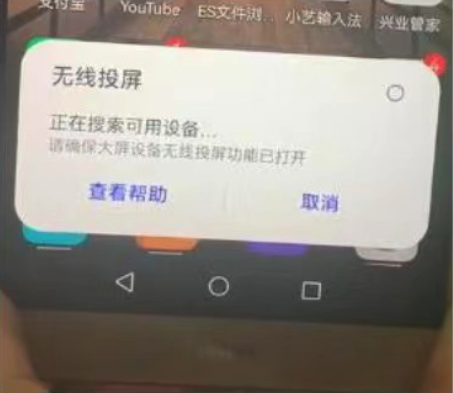
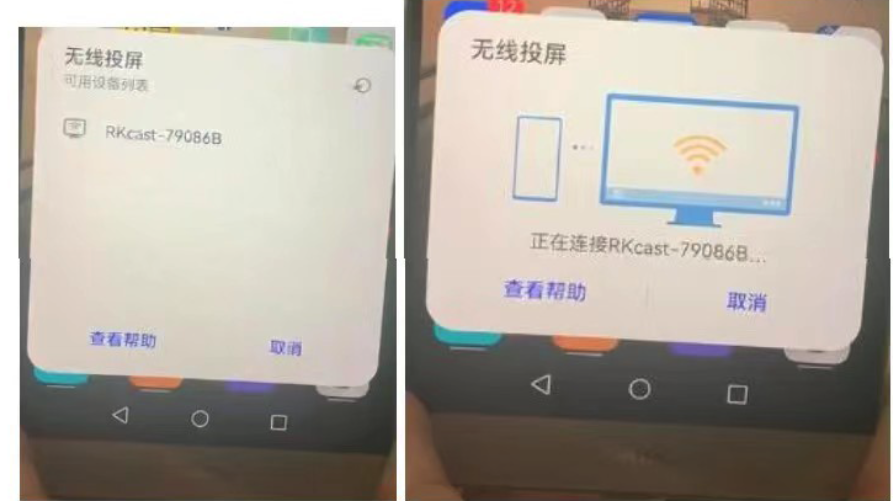
Offizielle Ressource: Android
iOS – Schritte für die AirPlay-Bildschirmspiegelung
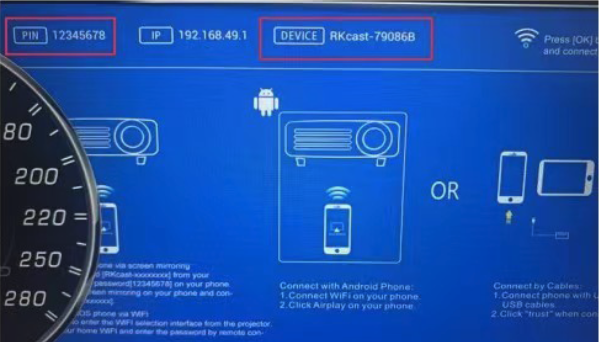
- Finden Sie SSID & Passwort am Cluster (WLAN-Seite des Clusters).
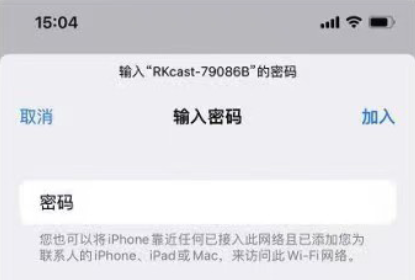
- Mit diesem Wi-Fi auf dem iPhone verbinden: Einstellungen → Wi-Fi → Cluster-SSID auswählen (Passwort z. B. 12345678).
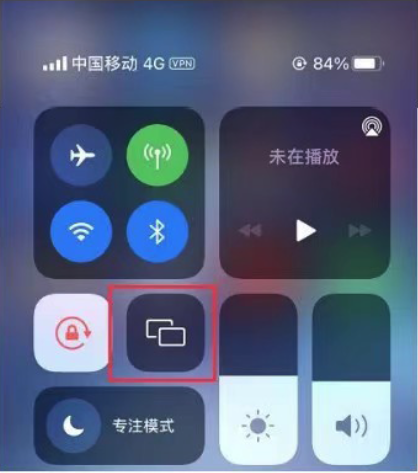
- Kontrollzentrum öffnen → Bildschirmsynchronisierung und tippen Sie auf den Gerätenamen, der zum Cluster passt. Für Navigation in voller Breite, schalten Sie die Hochformat-Sperre aus und drehen Sie zu Querformat.
Offizielle Ressource: Apple AirPlay
Audio-/Video-Routing-Strategien
Android — Bevorzugt
- Video: Wi-Fi-Casting zum Cluster.
- Audio: Bluetooth A2DP (Telefon → Head Unit).
- Ergebnis: Stabiles Audio mit akzeptabler Video-Latenz für Navigation/Apps.
Android — Fallback
- Video: Wi-Fi-Casting.
- Audio: 3,5-mm-AUX / USB-Audio (falls die Head Unit dies unterstützt).
- Verwenden Sie dies, wenn Bluetooth-Profile durch Unternehmensgeräte blockiert werden.
iOS — Praktisch
- Video: AirPlay-Spiegelung zum Cluster.
- Audio: Gleicher Pfad wie Video konstruktionsbedingt (kein getrenntes AV).
- Für satten Klang: CarPlay der Head Unit oder Android-Gerät in Betracht ziehen.
Latenz- und Qualitätsoptimierung
Entfernen Sie
- Montieren Sie die Cluster-/Casting-Antenne unbehindert.
- Verwenden Sie Querformat UI für Navigation; Hochformat-Sperre deaktivieren.
- Schließe Hintergrund-Streaming-Apps, um WLAN-Konkurrenz zu reduzieren.
- Halte das Telefon innerhalb von 1–2 m zur Antenne mit Sichtverbindung.
Vermeide
- das Platzieren von Antennen hinter Metallrahmen oder dicken Armaturenbrettern.
- 4K-Video spiegeln; für geringere Latenz 720p/1080p bevorzugen.
- Automatisches Drehen aus (verursacht vertikale Ansichten mit schwarzen Balken).
Checkliste zur Fehlerbehebung
- Gerät nicht gefunden? Schalte das WLAN des Telefons aus und wieder ein; öffne die WLAN-Seite des Clusters erneut. Manche Telefone speichern Scan-Ergebnisse für ca. 10–20 s zwischen.
- Spiegelung, aber kein Ton (Android)? Bluetooth trennen und neu koppeln; stelle sicher, dass A2DP/Medienaudio in den Geräteeinstellungen aktiviert ist.
- Hängt im Hochformat fest? Deaktiviere die Hochformat-Sperre; drehe das Gerät, bevor du die Navigations-App startest.
- Ruckeln/Verzögerung? Verkürze die Entfernung; entferne Metallhindernisse; schließe umfangreiche Hintergrund-Uploads (z. B. Cloud-Backup).
- iOS-Audiopfad? AirPlay spiegelt Audio und Video zusammen; für getrenntes Audio nutze CarPlay oder wechsle zu Android-Casting.
Häufig gestellte Fragen
Warum gibt es keinen Ton beim Casting?
Android: Kopple das Telefon → Head-Unit über Bluetooth (Medienaudio an). iOS: AirPlay trennt Audio/Video nicht; nutze einen von iOS unterstützten Head-Unit-Eingang oder wechsle zu Android-Casting.
Kann ich Videos auf dem Cluster ansehen?
Wir empfehlen navigationszentrierte Layouts. Befolge stets die örtlichen Gesetze und fahre aufmerksam.
Funktioniert das mit Samsung?
Ja. Die Namen variieren (z. B. Smart View / Cast), aber die Schritte entsprechen dem Ablauf von Huawei.
Beeinflusst Android Auto oder CarPlay dies?
Sie sind getrennt. Casting spiegelt deinen Telefonbildschirm; CarPlay/Android Auto laufen als Head-Unit-Apps mit eigener Benutzeroberfläche und eigenen Audiopfaden.
Welche Auflösung wird empfohlen?
1080p oder 720p bietet im Auto normalerweise die beste Balance zwischen Klarheit und Latenz.
Warum füllt mein Bildschirm das Cluster nicht aus?
Deaktiviere die Hochformat-Sperre und drehe vor dem Starten von Apps ins Querformat. Manche Apps müssen nach dem Drehen neu gestartet werden.
Wie verbessere ich die Stabilität?
Halten Sie eine freie Sichtlinie ein, reduzieren Sie HF-Störungen, minimieren Sie gleichzeitiges Streaming und stellen Sie sicher, dass die Cluster-Antenne nicht durch Metall blockiert wird.
Erlischt dadurch meine Garantie?
Screen Casting verändert nicht die Fahrzeugverkabelung. Weitere Informationen zur Abdeckung finden Sie in den Garantiebedingungen Ihres Ikagoo-Produkts.
Glossar & Konformität
| Begriff | Bedeutung |
|---|---|
| AirPlay | Apples drahtloses Protokoll für Bildschirm-/Audio-Spiegelung; iOS trennt Audio/Video bei der Spiegelung nicht. |
| Miracast / Cast | Gängige drahtlose Anzeigeprotokolle für Android, die von Huawei/Samsung verwendet werden (Benennung variiert je nach Hersteller). |
| A2DP | Advanced Audio Distribution Profile für Bluetooth-Stereo-Audio-Streaming. |
| Getrenntes AV | Senden von Video über Wi-Fi an das Cluster, während Audio separat an das Head-Unit weitergeleitet wird (Android unterstützt dies, iOS-Spiegelung nicht). |








Add comment
Du musst angemeldet sein, um einen Kommentar abzugeben.